Showing posts with label Mobile. Show all posts

Sunday, September 8, 2013

How to Reset Memory Card Password

How to reset memory card password? this question always arise in mind when your memory card is locked. As many mobile users protect their personal data by adding password to memory card, But it gets difficult to reset forgotten memory card password, in this situation many users gets frustrated  and they fear to loss their personal data from it. So just follow simple steps to reset your memory card password. You can also reset Nokia s40 mobile memory card password, but you need to have Symbian mobile to do so.

This is most common issues that locked mobile phone memory card due to password lock. In most cases such SD cards will be be unusable without unlocking the card. To prevent your card from this issue, do not place password protection for memory card unnecessarily. As we know most of card readers will not show the card detected on PC because of this password lock. If you have very important data in the MMC card.


So don't worry you can easily reset password of your memory card password. First of all to do this you need Android or Symbian mobile phone and X-Plore application.

How to Reset Memory Card Password:

  1. First download X-Plore and install in your Symbian or Android mobile phone.
  2. Open your X-Plore apps and press 0(Zero) and check which you have marked the "Show the system files"
  3. Then go to the following path C:/Sys/Data/Mmcstore
  4. Once you reached at C:/Sys/Data/Mmcstore you need to press "3" under option to set it in the Hex-viewer
  5. In the third column you will able to see a line of code TMSD02G (c??"?x???6?2?6?2?6). 
  6. Just check the character between the "?" it is your password i.e.: in TMSD02G (c??"?x???6?2?6?2?6) password is 62626
So your password is 62626, Now reset memory card password by entering this password.

Wednesday, August 28, 2013

How to Unlist your number from Truecaller App

Truecaller is a App which synchronizes your mobile contact number with truecaller database, and unnecessary sharing with world. Using this truecaller app any one can easily get your details by searching your number. And it is so annoying. So basically this app includes phones number captured from every device it interacts so making a social bond between people who just have a number but do not know the name, so this app can help them out. But still this app is regarded as a privacy breached and some people might want to remove or unlist their phone number from this app or website.

So we can  use official method to remove your number from truecaller app to do not show your phone number to anyone and completely unlist it out from truecaller. Well yes obviously the company that creates this kind of website or app has a mandatory rule to include some possibility through which anyone can get rid of their application.

Follow methods to Unlist your number from Truecaller App:

  1. Open Truecaller unlist page by clicking here.


  2. Now you will see page something like above, just choose your Country and then enter your phone number.
  3. Now you need to enter the Captcha code as mentioned and then you need to click that Mail kind of icon.


  4. That's it now you will see that Successful message like above so that means your number has been unlisted or removed from Truecaller.
  5. So now it might take like 24 hours for getting fully unlisted so you might have to wait.
Note: Once you remove/unlist your phone number cannot be added later again.

Tuesday, August 27, 2013

How to copy and paste text on Android Phone

Often it's much quicker to copy and paste text than to retype it completely in android phone. Fortunately for Droid users, it's easy to copy and paste text on Android phones as that is one of the phone's default features.
Trying to copy/paste text on your Android device can be a hassle. Most times the text isn’t even able to be selected, leaving you with no options. Who hasn’t gotten a URL via chat client that doesn’t allow links or copying text? You probably won’t do a lot of text editing on your Android phone. Well, no major editing, such as for a term paper or ransom note. From time to time, however, you may find yourself wanting to fix a word.


After selecting a chunk of text or all text on the screen, you can then cut or copy the text and paste it elsewhere. Copying or cutting and then pasting text works just like it does on your computer.

Follow these steps to copy and paste text on Android Phone:
  1. Select the text you want to cut or copy.
  2. Long-press the selected text.
    Touch the highlighted text on the touchscreen, and keep your finger pressed down. You see the Edit Text menu with three items: Cut, Copy, and Paste.
  3. Choose Cut or Copy from the menu to cut or copy the text.
    When you choose Cut, the text is removed; the cut-and-paste operation moves text.
  4. If necessary, start the app into which you want to paste text.
  5. Touch the text box or text area where you want to paste the copied or cut text.
  6. Position the cursor at the exact spot where the text will be pasted.
  7. Long-press the text box or area.
  8. Choose the Paste command or touch the Paste icon.
    The text you cut or copied appears in the spot where the cursor was blinking.
The text you paste can be pasted again and again. Until you cut or copy additional text, you can use the Paste command to your heart’s content.

Sunday, August 18, 2013

Nokia Lumia 625 Specification and Review

Nokia has recently released the Lumia 1020 windows phone and within just few days, now nokia announced brand new Smartphone from Lumia series that is Lumia 625, which is said to be the successor to Lumia 620. This device comes with a 4.7″ WVGA touchscreen and is powered by a 1.2 GHz dual-core Snapdragon S4 Plus process along with a RAM of 512MB. A 5MP camera with autofocus is equipped on the rear end while the front camera is a VGA.

Like the other Lumia series, the Nokia Lumia 625 also comes in a variety of colors taht is Orange, Yellow, Green, Black and White with an option to change the back shells as per your choice. Nokia has provided 8GB internal memory and can be expanded up to 64GB via microSD card.
A non-removable 2000 mAh battery is also embedded into the device to give maximum battery backup to the Windows Phone.
If you don’t find your device battery lasting long, these tips will help to improve battery life of Windows Phones.


Nokia Lumia 625 Specification: 

Features:
  • Big 4.7” LCD screen and lightning fast internet speeds with 4G for a bigger, better, faster smartphone experience
  • Unique semi-transparent design with changeable shells in 5 exciting colors
  • Have fun with your pictures, anytime, anywhere with Nokia smart camera and Cinemagraph
  • Leading experiences from Nokia apps include maps and navigation from HERE, plus free Nokia Music streaming
Technical Profile:
  • Operating system: Windows Phone 8
  • Memory:
    • 512MB RAM
    • 8GB internal user memory
    • 7GB SkyDrive cloud storage
    • MicroSD support up to 64GB
  • Display:
    • 4.7’’ IPS LCD WVGA (800 X480)
    • 201 ppi, 2.25D curved glass
    • Brightness control
    • Color boosting
    • Corning Gorilla Glass 2
    • High brightness mode
    • Sunlight readability enhancements
    • Lumia color profile
    • Wide viewing angle
    • Super sensitive touch for nail and glove usage
  • Processor: 1.2GHz dual-core Snapdragon S4 (MSM 8930)
  • Camera: Main camera:
    • 5Mpix, LED flash, 1080p @30 fps;
    • Secondary camera: VGA (480p);
    • Cinemagraph , Panorama, Smart Camera, Nokia Glam me, Skype video calling
  • Size: 133.25 x 72.25 x 9.15 mm, Weight: 159g
  • Connectivity:
    • USB2.0
    • BT 4.0+ LE,
    • WLAN IEEE 802.11b/g/n
    • A-GPS and Glonass
    • 3.5 mm audio connector
  • Sensors: Accelerometer, Proximity, Ambient Light Sensor
  • Battery: 2000mAh integrated battery
  •  Audio: 1 microphone, HD audio, Uplink noise cancellation, Dolby Surround headphone audio playback, FM Radio
Networks: RoW LTE variant:
  • GSM 850 MHz, 900 MHz, 1800 MHz, 1900 MHz
  • WCDMA 2100 MHz, 850 MHz, 900 MHz
  • LTE 3 (1800 MHz), 7 (2600 MHz), 20 (800 MHz)
  • Speed: HSPA+: UL/Cat 6 (5.76 Mbps) ; DL/Cat 24 (42 Mbps); LTE Cat 3: UL/50Mbps; DL/ 100Mbps
Lumia Services:
  • Here Drive Beta, Here Maps, Here Transit, Nokia Music, Smart Camera
Colours:
  • Orange, bright green, yellow, and white and black
Operating times:
  • Talk time GSM: up to 23.9 hours
  • Maximum talk time (3G): Up to 15.2 hours
  • Standby time: Up to 23 days
  • Video Playback time: Up to 6.8 hours
  • Music Playback time: Up to 90 hours
Nokia sales package accessories:
  • Charger: AC-20 (AC-10UC for Taiwan only)
  • Cable: CA-189CD (CA-190CD for Taiwan Only)
  • Battery: Pre-installed: BP-4GWA 2000 mAh
  • Headset: WH-108
  • Guides: Booklet
Nokia releasing couple of windows phone to compete with the leading Android Smartphone manufactures like Samsung and HTC at mid-range levels so that it can grab its lost position as the #1 in the game.

Saturday, July 13, 2013

How to Download YouTube Video on Android Phone

Today I am going to tell you how to download YouTube videos on android phone. There are a lot of apps for Android users which can spice up your android phone whereas many smart-phones do not support flash, but you can view YouTube videos with the help of some apps. The official YouTube app is pre-installed in almost every Android phone. But with this app users can only stream the videos and can not download it. Even if you go directly to YouTube with your browser, you can’t find that option in the mobile version. Downloading YouTube videos from your android phones is not a hard task. Here is something which will help you.


Download YouTube Video on Android :
  1. Go to Android Marketplace and search for the app called ‘TubeMate’ and install it.
  2. Install the app. 
  3. Now use the app to navigate in YouTube and select the video you want to download


  4. Once you select it, the page of the video will appear, showing the video info and related videos. Single tap on the video.
  5. Now a menu appears giving 2 options : Download or Watch. Select Download.


  6. When You click on download you will be given several resolutions. You can select any resolution you want. You can download it as HD video, normal video or even MP3.
  7. Clicking it, will download the video to your SD Card.
In this way, you can download YouTube videos in any resolutions with tube mate. I haven’t found any better alternatives for it. Remember that, the TubeMate will only support the resolutions that the video has on YouTube. You can’t download a low quality video as HD.

Nokia Lumia 1020 with 41MP Camera and 2GB RAM

Nokia Lumia 1020 is the 41MP autofocus PureView camera with a huge 1/1.5" BSI sensor (slightly smaller than the 1/1.2" imager inside the 808 PureView), 6-lens ZEISS optics and optical image stabilization. It is coupled with LED flash used for video shooting and a proper xenon flash.

The Nokia Lumia 1020 takes photos and video that no other smartphone can match with a 41 megapixel camera sensor, PureView technology, Optical Image Stabilisation and amazing high-resolution zoom.


Nokia Lumia 1020's optically stabilized 41MP image sensor that can snap 40MP and 5MP photos at the same time – one straight off the sensor and one after Nokia's Super sampling has been applied. The other 41MP cameraphone - 808 PureView can only shoot one or the other at a time.
Nokia Lumia 1020 can capture videos of up to 1080p resolution and thanks to the high-res sensor it features lossless zoom. You can zoom in up to 4 times in 1080p mode and up to 6 times when shooting 720p video without sacrificing much in terms of quality. Sound is recorded in stereo and is guaranteed to be crisp and deep thanks to the two wide dynamic range microphones on board.

It have 2GB RAM which is first for a Windows Phone device and comes with a 41-megapixel camera sensor which we already know but this would have 3x zoom. The Lumia 1020 would weigh 158 grams, bit heavier than the Lumia 925, but a lot lighter than the Lumia 920 that weighs 185 grams. It would be 10.4mm think (expect for the camera bulge). The leak also reveals the Nokia Camera Grip (PD-95G) for the device which surfaced recently.

Nokia Lumia 1020 has six-lens Carl Zeiss optics, you can utilize this to take wide-plot photographs. It offers the self-adjust, high-determination 3x zoom with double blaze system.i expansion, You can shoot a 1080p HD film at a rate of 30 casings for every second.


Nokia Lumia 1020 Specifications:
  • 4.5-inch (1280 × 768 pixels) Pure Motion HD+ AMOLED capacitive touch screen ClearBlack display
  • 1.5 GHz dual-core Qualcomm Snapdragon processor
  • Windows Phone 8 OS
  • 10.4 mm thick and weighs 158 grams
  • 41MP camera with BSI sensor, Optical Image Stabilization (OIS), 6 lens optics, High resolution zoom 3x, Autofocus, Xenon Flash, LED for video, 1080p HD video recording at 30fps
  • Nokia Pro Camera app
  • 1.2MP HD front-facing camera with wide angle lens
  • IHF speaker, 2 microphones, HD voice compliant, 3.5mm audio jack
  • LTE / 3G HSPA+ 41Mbps, WiFi 802.11 a/b/g/n, Bluetooth 3.0, GPS with Glonass, NFC
  • 2GB RAM, 32GB internal memory
  • 2000mAh battery, Wireless charging supported via option Charging Cover (CC-3066)
Nokia Lumia 1020 have ultra sensitive touch and 1.5GHz dual-core Qualcomm Snapdragon S4 processor. Total storage capacity is 32GB, Front camera is 1.2MP and Back camera is 41MP. Phone comes with different colors like matte white, yellow and black. This phone is very slim and light. In USA this phone is available at price $299.99(USD), you can buy this phone from eCommerce site but after 26 July 2013. But you can pre-order after 16 July 2013.

Tuesday, June 25, 2013

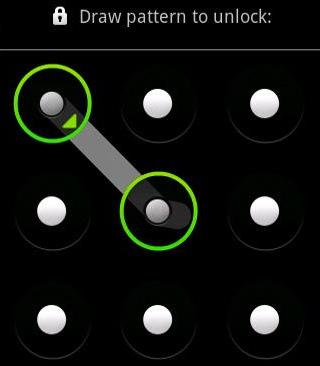
How To Unlock Android Phone Password and Pattern

Android is one of the most popular mobile operating system. Because it is easy to use operating system. And It provides privacy to user by protecting their data by means of password or using patterns. Many android phone users take this advantage to protect their data using password or patterns. Of course everybody remembers their password or pattern that they used to protect data, But what happens when they forget password or pattern.?


If you are one of them who forget your password? then, you are at right place, here in this article i will tell you how to unlock android phone's password or pattern. Follow simple steps to unlock your android phone' password or pattern.
  1. First of all Power Off your device.
  2. After this just press up volume key and hold it.
  3. Now press the power button and hold it.
  4. It will start a secret terminal. 
  5. Then use home button for go up and down.
  6. Then choose option DELETE ALL USER DATA.
  7. It will take some time, and your android phone is unlocked.
That's all, you are successfully unlock your android phone password and pattern.

Note : By using trick you will be loose your phone's user data and all system files are reset to default, use this trick at your own risk.

Saturday, June 22, 2013

Nokia s40 phones JAVA apps minimizing trick

Each non-smart phones running the software should prompt -Do you agree to read user data was dead tired.

Now finishing the next,without brush machine,you can achieve break the certificate authority,to remove the shackles of the purpose of the certificate.


  1. Install Phoenix on your computer(PC)
  2. Connect your mobile to your computer in pc suite mode, open the Phoenix (before opening phoneix exit pcsuite on your computer using exit option in pcsuite [file----exit] )now open Phoenix and click on File -Scan Porduct.
  3. Then Phoenix will find your cell phone and shows your phone information in bottom line of Phoenix.
  4. Click on Product- Product File.
  5. In the bottom of pop-up window click on Read
  6. Turn to an option for Java TCK Support. It is 28th option in some mobiles, 48th in some other mobiles, if not 28th 0r 48th option scroll through options you will get some where in options after you got ''Java TCK Support''option.
  7. In the right drop-down menu to select the Java TCK - ON (JSR75 R W).
  8. Click-Write.
  9. Close Phoenix, unplug the phone, shut down and then boot. At this point the certificate have all been cracked mobile phones, If you need to restore permissions, and then follow the steps above Step7 will be amended to default the first one (JAVA TCK OFF) option. (I believe no one will want to go to restore bar!)
  10. There is the need of ppu files in this processs of hacking, just we are changing a setting in product file.
  11. The product file will normally be inside the package u downloaded from allnokia.ru but plz note onlu use ppu from package,bcoz every different firmware version has different ppu you can use this method of hacking in minimizing java apps also after hacking your phone using the given method.

Editing java apps for minimizing

  • Open jar file which you want to minimize on your computer using winrar,
  • there you will find META-INF folder open that folder in that folder you will get MANIFEST.MF file Open that file using notepad and add these line at last Nokia-MIDlet-no-exit: true after that save that,
  • press ok for every thing that asked,
  • now send that jar app to mobile and test it,
  • press red button(call end button) to minimize.

Friday, April 26, 2013

Secret Codes for Android Mobile

Android platform is most popular in today's world, because its have many feature than any other mobile operating system. Almost every one is using Android phone, so every one is curious about to know shortcut keys that might be secret codes of your Android device.
These codes enables you to access the hidden options which are not shown by default on your device, and can be used for testing the functions of various utilities used by your mobile.


These codes are used only by technicians, so be careful with them and use it at your own risk.

Basic Codes:

*#*#7780#*#* - This code is used for factory restore setting.This will remove Google account setting and System and application data and settings.

*2767*3855# - This code is used for factory format, and will remove all files and settings including the internal memory storage. It will also re install the firmware.

*#*#4636#*#* - This code show information about your phone and battery.

*#*#273283*255*663282*#*#* - This code opens a File copy screen where you can backup your media files e.g. Images, Sound, Video and Voice memo.

*#*#197328640#*#* - This code can be used to enter into Service mode. You can run various tests and change settings in the service mode.

*#*#7594#*#* - This code enable your "End call / Power" button into direct power off button without asking for selecting any option(silent mode, aero plane and power-off).

*#*#8255#*#* - This code can be used to launch G Talk Service Monitor.

*#*#34971539#*#* - This code is used to get camera information. Please avoid update camera firmware option.


W-LAN, GPS and Bluetooth Test Codes:

*#*#232339#*#* OR *#*#526#*#* OR *#*#528#*#* - W-LAN test (Use “Menu” button to start various tests).

*#*#232338#*#* - Shows WiFi MAC address.

*#*#1472365#*#* - GPS test.

*#*#1575#*#* - Another GPS test.

*#*#232331#*#* - Bluetooth test.

*#*#232337#*# - Shows Bluetooth device address.


Codes to launch various Factory Tests:

*#*#0842#*#* - Device test (Vibration test and BackLight test).

*#*#0588#*#* - Proximity sensor test.

*#*#0*#*#* - LCD test.

*#*#2664#*#* - Touch screen test.

*#*#2663#*#* - Touch screen version.

*#*#0283#*#* - Packet Loopback.

*#*#0673#*#* OR *#*#0289#*#* - Melody test.

*#*#3264#*#* - RAM version.


Code for firmware version information:

*#*#1111#*#* - FTA SW Version.

*#*#2222#*#* - FTA HW Version.

*#*#44336#*#* - PDA, Phone, CSC, Build Time, Changelist number.

*#*#4986*2650468#*#* - PDA, Phone, H/W, RFCallDate.

*#*#1234#*#* - PDA and Phone.

If you are not much sure about how to use these secret codes, then don't use this one or use at your own risk.