Showing posts with label How-To-Guide. Show all posts

Sunday, September 8, 2013

How to Reset Memory Card Password

How to reset memory card password? this question always arise in mind when your memory card is locked. As many mobile users protect their personal data by adding password to memory card, But it gets difficult to reset forgotten memory card password, in this situation many users gets frustrated  and they fear to loss their personal data from it. So just follow simple steps to reset your memory card password. You can also reset Nokia s40 mobile memory card password, but you need to have Symbian mobile to do so.

This is most common issues that locked mobile phone memory card due to password lock. In most cases such SD cards will be be unusable without unlocking the card. To prevent your card from this issue, do not place password protection for memory card unnecessarily. As we know most of card readers will not show the card detected on PC because of this password lock. If you have very important data in the MMC card.


So don't worry you can easily reset password of your memory card password. First of all to do this you need Android or Symbian mobile phone and X-Plore application.

How to Reset Memory Card Password:

  1. First download X-Plore and install in your Symbian or Android mobile phone.
  2. Open your X-Plore apps and press 0(Zero) and check which you have marked the "Show the system files"
  3. Then go to the following path C:/Sys/Data/Mmcstore
  4. Once you reached at C:/Sys/Data/Mmcstore you need to press "3" under option to set it in the Hex-viewer
  5. In the third column you will able to see a line of code TMSD02G (c??"?x???6?2?6?2?6). 
  6. Just check the character between the "?" it is your password i.e.: in TMSD02G (c??"?x???6?2?6?2?6) password is 62626
So your password is 62626, Now reset memory card password by entering this password.

Monday, September 2, 2013

How To Find Right Web hosting Provider

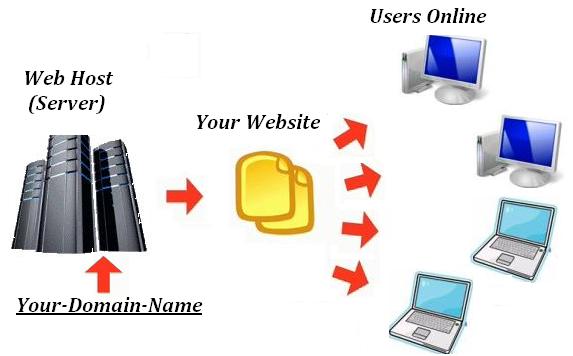
To find right web hosting is quite difficult, because there are many good web hosting providers in today's world such as Hostgator, DreamHost and BlueHost. Every web publisher are trying to find good service provider because we pay them to host our site. There are many things that are keep in mind before buying any web hosting service, such as how much big your organization, and how much space you required to host your site, and also check uptime of that site because it is important, if your site is not live then you loose many customers/visitors. So before buying/purchasing any web hosting keep following suggestion in mind.


Web hosting features requirement

This is probably the most important consideration to start finding a host for your site. You need to decide the technical requirements for your website, this including:
  • Server platform and hardware requirements
If you plan to set up a website that uses programming environments such as Active Server Pages (ASP), Visual Basic scripts, Cold Fusion or Microsoft Access or Microsoft SQL database, in this case, you will need to find a web hosting service that supports Windows platform such as Windows NT or Windows 2000 servers.

Likewise, if you plan to use programming languages such as Perl, CGI, SSI, PHP or mySQL database, then any web hosting plans that support Unix/Linux platform should be sufficient to meet your hosting requirements. Once you have these server platform and hardware requirements in mind, you can decide the best web hosting plans for your need. For more information, you can read "How to select a web server and server platform?"
  • Disk space & Bandwidth requirement
Here is another technical requirement that you need to consider before selecting a web hosting plan, i.e. disk space and bandwidth. If you intend to publish a website that does not have a lot of contents (meaning, web pages), then the disk space requirement may not be a big concern to you. In general, a disk space with 200MB to 500MB should be enough to meet your hosting requirement. In contrast, if you plan to host a website with enormous amount of graphic pictures, mp3 or video files, then you should consider a web hosting plan that provide huge disk space, for example, 500 MB to 1,000 MB.

Similarly, the bandwidth requirement will depend on your site traffic estimation. Obviously, a website that expect to attract high traffic will consume the monthly bandwidth allowance very fast. If so, you will need to find one web hosting service that offer huge bandwidth with 40 GB to 100 GB per month. Depending upon your website requirement, choosing a web hosting service that provide sufficient amount of disk space and bandwidth is crucial consideration to prevent paying extra costs in the future should you overuse the monthly disk space and bandwidth allowance.
  •  Other hosting features
While the above requirements are utmost important, there are other hosting features that you have to consider too. Can web hosting provider support video clips on your website, if you have? Is the web hosting service compatible with Dreamweaver or FrontPage web authoring tool? Do you plan to set up a virtual store online? Can the host support the e-commerce features without adding extra cost to your monthly payments? On top of that, you may also want to find out the number of email accounts provided, number of FTP accounts, web statistic software (analyze your web traffic), type of control panel supported (manage your web hosting account), database and scripting languages supported and etc.

Reliability and scalability

A first-class web hosting provider offers reliable server uptime and fast Internet connection. You should only choose a web hosting service that guarantee at least 99% server uptime with high-speed Internet backbones using at least OC3 (Optical Carrier) lines (155 Megabits per second) or above instead of T1 or T3 lines. A reliable web hosting provider usually invests heavily on their data center infrastructure with high performance servers, high speed multiple backbones providers with fail-over redundancy, backup power generators and firewall software protection in place to ensure they meet the uptime guarantee specified in the terms of service.

Similarly, you should choose a web hosting service with hardware facilities that designed for scalability, so that they can grow with your business. For example, if you need to increase more disk space, bandwidth or number of mySQL databases, you should be able to upgrade as needed without any problems.

Customer service and support

The last major consideration in choosing a web hosting service is to find a web hosting providers that offers excellent customer service and support. You should always search for a web hosting provider that offers 24 hours a day, 7 days a week technical support that fielded with highly experience technicians, so that any web hosting problems will be resolved within a reasonable amount of time. You may also want to consider to test how responsive is their customer support by sending few inquiry emails to the web hosting provider. In general, any response in less than 24 hours is considered acceptable. It is a sign of poor customer support if they take more than one day to response.

In addition, a web hosting provider with excellent support should also provide multiple support channels, such as toll-free phone support, 24/7 email support, live chat, online knowledgebase, Interactive flash tutorials and FAQ.

Also, good web hosting companies develop a community around their service. The community members help each other to solve a lot of regular issues. Does your web hosting solution provider have anything like that? Tips, if you are planning to get business via organic traffic (SEO), make sure that you have good neighbourhood (other websites in the same space) in the shared hosting space. Or it may hamper your ranking over time.

Thursday, August 29, 2013

How to add Image or Photo to Facebook Comment

Have you notice earlier that facebook comments have image in it. And its look pretty cool to comment using image, but many peoples are still using old smiles to show reactions. But now onwards you can add your own image or photo to facebook comment, to do so many people are start searching to find out how add image or photo to facebook comment. So your search is stopped here, because here is methods to add image or photo to facebook comment. Well this is not any trick or hack, however this is a new facebook feature to add image to facebook comment.


Facebook allows you to easily post photos in several places, such as in albums, in messages and on walls. However, posting a photo in a comment is a little more complicated. There are two different methods to upload image in facebook comment.

Steps to add Image or Photo to Facebook Comment:

There are two different methods using which you can able to add image in facebook comment.

Method 1:
  1. Login to your facebook account.
  2. Then go to any post and click on comment link.
  3. Then you will see text field to add comment, and in same line at right corner you will see camera icon like below image.


  4. Click on that icon to upload photo.
  5. when photo uploaded, hit enter button.
  6. that.s all you will see that photo in comment section.
Method 2: 
  1. Upload your photo to a photo-sharing website. These sites provide unique link addresses for each photo you upload. Try sites such as Image Shack, Photo Bucket, Flickr and Image Venue.
  2. Click on your uploaded photo. Highlight and copy the link from the address bar at the top of your browser window.
  3. Log in to Facebook. Click on the post on which you would like to comment.  
  4. Type the code "<img src=http://yourphotolinkhere.com>" (without quotes) in the comment field. Paste the full Web address of the photo you would like to post in the comment to replace "http://yourphotolinkhere.com" Press "Enter," or click on the "Send" button under your comment.  
  5. Refresh your browser window to see your photo under the post's comments.
  6. Using this method you can also add animated image (.gif file).
Using above methods you can add following things in facebook comment:
  1. You can comment with text only. 
  2. You can comment with a photo or image only. 
  3. You can comment with both a text and a photo or image.
That's all now amaze your friend by adding images in facebook comments.


Wednesday, August 28, 2013

How to Unlist your number from Truecaller App

Truecaller is a App which synchronizes your mobile contact number with truecaller database, and unnecessary sharing with world. Using this truecaller app any one can easily get your details by searching your number. And it is so annoying. So basically this app includes phones number captured from every device it interacts so making a social bond between people who just have a number but do not know the name, so this app can help them out. But still this app is regarded as a privacy breached and some people might want to remove or unlist their phone number from this app or website.

So we can  use official method to remove your number from truecaller app to do not show your phone number to anyone and completely unlist it out from truecaller. Well yes obviously the company that creates this kind of website or app has a mandatory rule to include some possibility through which anyone can get rid of their application.

Follow methods to Unlist your number from Truecaller App:

  1. Open Truecaller unlist page by clicking here.


  2. Now you will see page something like above, just choose your Country and then enter your phone number.
  3. Now you need to enter the Captcha code as mentioned and then you need to click that Mail kind of icon.


  4. That's it now you will see that Successful message like above so that means your number has been unlisted or removed from Truecaller.
  5. So now it might take like 24 hours for getting fully unlisted so you might have to wait.
Note: Once you remove/unlist your phone number cannot be added later again.

Tuesday, August 27, 2013

How to copy and paste text on Android Phone

Often it's much quicker to copy and paste text than to retype it completely in android phone. Fortunately for Droid users, it's easy to copy and paste text on Android phones as that is one of the phone's default features.
Trying to copy/paste text on your Android device can be a hassle. Most times the text isn’t even able to be selected, leaving you with no options. Who hasn’t gotten a URL via chat client that doesn’t allow links or copying text? You probably won’t do a lot of text editing on your Android phone. Well, no major editing, such as for a term paper or ransom note. From time to time, however, you may find yourself wanting to fix a word.


After selecting a chunk of text or all text on the screen, you can then cut or copy the text and paste it elsewhere. Copying or cutting and then pasting text works just like it does on your computer.

Follow these steps to copy and paste text on Android Phone:
  1. Select the text you want to cut or copy.
  2. Long-press the selected text.
    Touch the highlighted text on the touchscreen, and keep your finger pressed down. You see the Edit Text menu with three items: Cut, Copy, and Paste.
  3. Choose Cut or Copy from the menu to cut or copy the text.
    When you choose Cut, the text is removed; the cut-and-paste operation moves text.
  4. If necessary, start the app into which you want to paste text.
  5. Touch the text box or text area where you want to paste the copied or cut text.
  6. Position the cursor at the exact spot where the text will be pasted.
  7. Long-press the text box or area.
  8. Choose the Paste command or touch the Paste icon.
    The text you cut or copied appears in the spot where the cursor was blinking.
The text you paste can be pasted again and again. Until you cut or copy additional text, you can use the Paste command to your heart’s content.

Monday, August 26, 2013

How to find If someone Is using your Facebook account

Do you know how to find If someone Is using your Facebook account. No? In this article I will tell you how to find if someone is using your facebook account. Facebook offers to create 2nd sign in seal to your account. Using this you can create sign in seal, in that you can allow selected devices that can be use to login to your Facebook account. So take a look of this feature.
  • Have you ever suspected that someone else is accessing your Facebook account?
  • Have you found any suspicious activity on your Facebook profile? 
  • Want to sign out from your Facebook account remotely? 
  • Forgot to log out from Facebook?
  • Someone steal your login details via phishing?
Facebook will help us to roadblock suspicious logins form any computer, mobile or any third party apps that recently access your account. Here I decided to share a security feature of Facebook that easily identify and send you email notification if anyone is secretly logging in to your Facebook account.


Facebook allows users to identify the list of computer/mobile devices that you have logged into your Facebook account. It also displays date and the approximate geographic location(not exact) of that device based on its IP address. If you come across you have logged in from an unknown device or unknown place 'Click the End Activity' to log out the session from that unknown device.
Where can I find these setting on Facebook?
Log in to your Facebook account>>Account>>Account settings>>Security>> Active sessions.
Now you can see the computer/mobile devices you have logged into your Facebook account and the date of your last access to Facebook.
For more safety to your Facebook account we requested to activate mobile sms alerts and email notifications. If someone else tries to log in to your Facebook you will receive notification via email and sms instantly, and if it was an unauthorized access you can take further steps to end that session using the above method.

Saturday, August 24, 2013

How to download facebook video in Android Mobile

Do you know you can download facebook video in Android Mobile. Lets see detail procedure to download facebook videos in your android phone.As we know there is no option available in Facebook to download a video to our computer and phone as well, we can just watch them in Facebook.

However, we can get our favorite videos directly to our android smart phone using a third-party application called as “ES file explorer” which is available to download for free on Google play store. With using this app, we can store any Facebook video very quickly, and it’s very easy too.  Just scroll down to read step by step fully explained tutorial.

How To Download Facebook Videos in android Mobile:

As I said earlier, we need to use a third-party application to do this. I explained the whole process from the scratch, especially for newbie’s.
  • Go to Google Play store application, search for ES File explorer app there. Once you found it, download and install the app in your device.
  • I hope you already have Facebook android App installed in your device, otherwise download & install it from the same Google play store.
  • Now open the Facebook app, and log in there using your email id and password as usually.
  • Search / open the video which you want to download, and then touch on the play button which appears on center of the video screen.
  • Once you taped on Play button, it will open a pop-up window like shown below.

  • There you need to click on “ES Downloader” if you wish to download that video. Immediately you will see download process of your video.
  • Once downloading has finished, you will see your downloaded video in gallery of your smart phone.
That’s all. Now you can start downloading all of your favorite videos to your smart phone, without any cost. The advantage of downloading FB videos to your phone is you will be able to watch them anytime.

    Friday, August 23, 2013

    How to Optimize Blog for Google Ranking

    Do you know how to optimize your blog for Google ranking. following how to guide will help you to increase your blog ranking in Google. Consistently add new content to your company Blog. Fresh, original, insightful content remains your best tool in search engine optimization. Blog leads to high real-time results on Google that will be maintained for the long-term. Low-quality content, not articles and knowledge that readers notice not useful.

    Stick with solely posting links on sites with relevant content. Websites with a typical theme and content usually carry additional weight than a website covering too different topics. Links on websites while not a general topic will really hurt your cause instead of facilitate. Avoid links on websites unrelated to your site’s core message or topic.


    Keep the proper quite company. during this new search engine world, having the incorrect types of friends will price you. the maximum amount as you ought to keep yearning for links from high-quality sites, avoid obtaining them from content farms and different “spammy” resources. You’ll appear guilty by association.

    Use CopyScape. this is often software (www.copyscape.com) that scours the net to make sure that your content is original and not duplicated. you'll contemplate reaching out to a number of these web sites with an expert however firm request to delete content copied from your website. In some cases you'll need to rewrite a number of your content.

    Manage your web site and finish off low content or duplicate pages. peruse your website from time to time to visualize if you have got content that's duplicated throughout your web site. make certain titles and meta tags are differentiated therefore Google picks up every page separately. A logical thanks to begin this method would be to put in Google Webmaster Tools.

    Don’t recycle concepts. notwithstanding you write one thing that’s “original,” if it’s terribly kind of like what you have got on another page – or which will be found in dozens of places across the net – it’s doubtless to be deemed uninteresting to searchers, that might ultimately have an effect on your site’s ranking if they click away quickly.

    Supply the proper types of links. It’s still a decent plan to purpose individuals at different high-value sites, or perhaps social profiles on Facebook, Twitter, and LinkedIn. Doing therefore shows Google and therefore the different search engines that you’re a real supply of knowledge on-line, not simply the destination for content.

    Keep faraway from overpowering advertisements. A high variety of advertisements is one among the ways in which that issue how Google measures identifying a low-quality website. If you are doing ought to have ads, make certain they don’t overpower your website’s content. Having links to websites dominated by ads might hurt your rankings yet. Have a quick web site. In recent years, Google has began to concentrate to a number of the finer points with their search engine listings, and confirmed that how briskly your website masses is currently a determinant within the algorithm. Not solely could be a quick web site sensible for SEO however the faster a page masses, the faster your shoppers will notice what they’re yearning for and therefore the additional doubtless they're to shop for.

    Bogger outreach. decision and email Bloggers who write concerning topics associated with your web site. supply to write down content and guest posts in exchange for links back to your web site. If you sell a product, supply samples.

    Thursday, August 22, 2013

    How to Make Money from Blogging

    Do you know you can make money from blogging. Yes blogging gives you power to make real online money. Webmasters have a lot of opportunities to make money out of creating blogs. The most ideal thing to making money from blogging is to join affiliate programs, sell advertising space, marketing services, enhance customer relations and solicit contributions. This technique to make money can be done along or through a combination of any method.


    Let Businesses Use Your Space
    If there are plenty of visitors on the blog, it can be viable alternative to sell advertising space to monetize the website. An enrollment to an advertising program allows the webmaster to earn money by getting relevant advertisements onto available blog posts. Money is earned when a website visitor clicks an ad. This may not provide a fast means of income; however, this is a viable means to receive residual earning which can be possible as long as the site exists.

    Participate in Affiliate Programs
    Webmasters will be able to advertise a digital or physical product through affiliate programs. Whenever a product is sold, the webmaster will earn a commission. This technique of making money blogging does not need a huge traffic; however, this will demand some people who have a strong trust to the webmaster. When a webmaster chooses to go through with this type of monetization, it is important that he will ensure the relevance of the affiliate program to the niche of his blogs in order to keep sale conversions.

    Seek Voluntary Contributions
    Webmasters can also make money blogging by asking visitors to make a financial contribution. It is important for a webmaster to set an information page through which the readers will have an idea that the website they are visiting is operated by contributions. Do not forget to place a DONATE button to allow easy contributions from visitors. This is a great means to make money blogging especially if the topic of the blogs is finance and business.  A blog that provides respectable and sound advice will expectedly get the trust of readers facilitating loyalty.
    If a webmaster possesses a certain set of skills, he is then able to provide services on the blog. For instance, a freelance writer can make a blog offering editorial services. A simple showing of skills and providing contact information to get business opportunities is a great way to make money while a webmaster maintains a blog.

    Build Customer Trust
    It is not very necessary that a blog is focused on newly launched business ventures. Clients and customer can also be interested with personal blogs. Say, if a blogger can have the ability to build a website, through which he can interact with potential and existing clients, has a brick and mortar job. This helps build trust between customers and owners as well as becomes a means for the website to earn profits.

    Consider Important Elements
    Generally speaking, the following elements are necessary when you wish to earn money through blogging.
    • Blog publishing software
    • RSS/syndication
    • HTML/CSS
    • blog comments (and comment spam)
    • Feed aggregators
    • trackbacks
    • pings
    • Search engine optimization (SEO)
    • full vs. partial feeds
    • email
    • page rank
    • social bookmarking
    • page rank
    Making money out of blogging is just a simple task to do for the webmaster as long as he has the vision to earn in the first place. His skills and own knowledge will help him come up with ideas on how his blogs will help his website monetize. With just an investment made from initiative, a webmaster can become a successful website owner.

    Sunday, August 18, 2013

    How to Send Private Messages in Google Plus

    Now days, many people uses google+ to share theirs photos, ideas and to chat with friends. But many people doesn't know to send private message to google plus friend. So, I will tell you how to send private messages in google plus. If you’re on Facebook, then it is very easy to send private messages to someone without being tracked. But, it is not the case with Google Plus. Although there is an option in Google Plus to send private messages, it is not publicly visible and so many people won’t be aware of it. In this article, let us see how you can send secret messages to your Google plus friends.


    How to Send Private Messages in Google Plus:
    1. Login to your Google Plus profile.
    2. Go to your page and type your private message. In the ‘To’ field, simply delete the default tag ‘Friends’ or ‘Public’ whatever you’ve set and enter the name of the person with whom you want to share your post with. You can add multiple people in this step.
    3. Next, click on the down arrow beside the ‘To’ section and select ‘Disable reshares’.


    4. Now, click ‘Share’.
    Now, All the recipients who’re tagged in your post will receive a notification from Google+ that you’ve sent them something and it won’t be visible to anyone except to those who’re tagged in your post. And they can able reply back to your post.

    Thursday, August 15, 2013

    How to Download Song Lyrics in Windows Media Player

    Do you know how to download song lyrics in windows media player? No. Then I will tell you how to download lyrics. Well there are many online website's which you can use to get song lyrics but what about getting all the lyrics directly right in front of you as soon as you play any song. Well yes using simple plugin called "MiniLyrics" you can download song lyrics and even stream them as your song processes. So now by stream I mean, that it will download your song lyrics on the go instantly but it will even start highlighting the lines for you as soon as your song starts playing, so the current line being sung will be highlighted so you know where the song is, so its just amazing.


    How to Download Song Lyrics in Windows Media Player:
    Minilyrics online lyrics database it has huge databsae and its even expanding day by day as new song are stepping in, so you are not going to face any problem, if you download or purchase out any new song, so as soon as you have the song you will have all the lyrics with you.

    So now another good part about Minilyrics you have full preferences panel to customize your lyrics window to make it look like it's a part of you media player. So you will dozens of skins which you can apply easily. So now lets see how to download and use it.
    1. Download Minilyrics Free Version.
    2. Now you will get the setup file, just run it and install the software.
    3. Now your software is install, now just play any song and you will see another window Minilyrics will popup.
    4. It will download Lyrics for your song automatically and will start streaming it up for you, you will be able to lyrics going side by side song playing.
    So this way you can get your all favorite songs lyrics with you.

    Saturday, August 10, 2013

    How to Create Direct Download Link's for Google Drive Files

    Many people wants to share their file online, for that they widely use dropbox or box account, but it have limitation,  such as bandwidth restriction. So today i will tell you how to create direct download links for your google drive files. Recently my box account was temporarily disabled due to heavy traffic attack from different websites, as all were sharing my link's, so I started searching for some alternatives where I can host these small files and get direct download at the same time as dropbox was offering me. So I came across many website's like mediafire and other one's but I got my hold on Google Drive as I trusted the Google name so I started searching for some easy ways to get direct download link for Google Drive files.
    Well I came across one easiest way that works well and will simply allow you to create direct download link for any file you upload on Google Drive, now let me remind you that you are going to get 5GB free space, so make sure your file's are small in size but if you are wishing to host files in bulk then you can even purchase a nice plan from them. So now lets jump in to the tutorial on creating direct download link's for files uploaded in Google Drive.

    How to Create Direct Download Link's for Google Drive Files:

    Now the reason we are going to use Google Drive is that it offers free 5GB space instead of 2Gb that is offered by dropbox and the second best one is that it offer's unlimited bandwidth, so anyone can download your files from different nation's and that too how many they wanted too. So let's see how it can be done.
    1. Open Google Drive & Sign In.
    2. Now upload file's to Google Drive.
    3. Now when the file is uploaded right click on it and Under Share click on Share.
    4. Now you will see a pop-up window, just under Who has access ? option, choose Public (this is important as direct download only works if file is public)
    5. Now just copy the ID of that file like in the image below.
    6. Now replace below xxxxxxx with that ID you just copied.
      https://docs.google.com/uc?id=xxxxxxxxxxxxxxx&export=download
    7. Now this is your direct download link for that Google Drive file.

    So now you can shorten this big URL with any URL shortener I would recommend goo.gl or bit.ly and now you can share this small URL with anyone and as soon as someone clicks on the links download will start right away. So now no matter how much bandwidth people access your links will be alive always.

    Friday, August 9, 2013

    How to Make Responsive AdSense Ad Units

    Now days many websites are responsive, so what if they want to place adsense ad units. but till now we don't know whether we can place responsive adsense ads on our website. So relax, today i will tell you hoe to make responsive Adsense Ad units.

    Earlier also people have already experimented on this thing and obviously they have created responsive ad designs but now we are talking about official update from Google which is much more stable and legal to be applied, yes now you do not worry about manipulating the code unless its under terms.


    Responsive Adsense Ad Units:

    Well now if you visit your AdSense account you will see that under New Ads creation wizard you will find another head called "Other - Responsive" so now under this one you have once simple ads unit that’s responsive and will work on the CSS base, which you need to create.

    Well this is in BETA testing, still its working like a charm. Now this code is already Asynchronous Loading enabled so you will not see that two code choosing option. Now as you choose the code you will get your code somewhat like below including some default @media tags for responsive CSS structure, but will need to manipulate these codes according to your website's requirement.
    <style>
    .tutsol-responsive-ad { width: 320px; height: 50px; }
    @media(min-width: 500px) { .tutsol-responsive-ad { width: 468px; height: 60px; } }
    @media(min-width: 800px) { .tutsol-responsive-ad { width: 728px; height: 90px; } }
    </style>
    <script async src="http://pagead2.googlesyndication.com/pagead/js/adsbygoogle.js"></script>
    <!-- tutsol Responsive Ad -->
    <ins class="adsbygoogle tutsol-responsive-ad"
         style="display:inline-block"
         data-ad-client="ca-pub-123456789012345"
         data-ad-slot="1234567890"></ins>
    <script>
    (adsbygoogle = window.adsbygoogle || []).push({});
    </script>
    Note: This is only for demonstration purpose and it will not work for your website, you need to create your personal ad code right from your account.

    So now you able to add this code to wherever you want  responsive ad design but make sure you you customize the @media tags according to your website, else it won’t work.

    Tuesday, August 6, 2013

    How to enable Hibernate mode in Windows 8 PC

    Do you know how to enable hibernate mode in windows 8 pc? No, then don't worry today i will tell you how to enable hibernation mode on windows pc. Lets, first of all understand what is hibernate. Hibernation saves electrical power. After hibernating, the hardware is completely powered down (just like for a regular shutdown). Therefore a hibernated machine uses no more electrical power than one which is switched off. Hibernation is a means of avoiding the burden of saving unsaved data before shutting down and restoring all running programs after powering back on.

    So lets do it step by step, Hibernating your pc is very helpful when you have some urgent work and simultaneously you don't want to loose your current work, that time this feature comes in picture, just put your pc in hibernating mode, to get your all files and mails as it is, as that was before hibernating.


    Just follow These steps to enable Hibernate mode in your Windows 8 PC:
    1. You'll need to access your system's power settings, which you can do any number of ways. My preferred method: press Win-W (that's the Windows key and the letter w) to bring up the Settings Search menu, then type power.
    2. Click Change what the power buttons do.
    3. Click Change settings that are currently unavailable.
    4. Scroll down to the bottom of that window to find the "Shutdown settings" section.
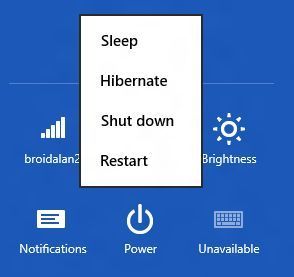
    5. Click the box next to Hibernate to enable the option.
    6. Click Save changes.
    7. Now, when you go to power down your system, you'll see the Hibernate option in your list of choices. Also, in that same System Settings window (step 4), you can choose Hibernate for any of the "Power and sleep buttons and lid settings" options.
    In other words, if you want your system to hibernate when you press the power button or close the lid, this is where you can configure that setting.

    Sunday, August 4, 2013

    How to Set Up WiFi Router on Windows PC

    Today I will tell you how to setup WiFi Router on windows. To do this You must be have Ethernet internet connection in your home that you’re using on your PC or laptop but now you’ve bought a new WiFi router so that you can setup Wi-Fi connection using which you’ll be accessing internet on your mobile devices. Now Days we have smartphones phones or laptops in our home which are capable of accessing internet via WiFi network. WiFi network allows devices to connect to internet wireless.

    Using below methods you will be able to configure WiFi Router on Windows XP/7/8. In these days many people have windows 7 or 8. However, Windows 8 is almost identical to the Windows 7. The only difference is at the start menu/desktop which is replaced by new Metro look. So the method I’m sharing below will work on both. You may find very minor changes in the options while using Windows 8.


    How to Setup WiFi Router on Windows PC:


    Method 1:

    1. You’ve purchased router which must be having a software CD/DVD inside its box. Insert that disc into the optical drive of your PC and install the software. If software asks for upgrade then do that so that you get latest available software.
    2. Once the software is installed then it will run automatically. Now you need to follow screen instructions to setup WiFi router. It will ask you to do setting up related stuff one by one. Make sure you didn’t miss any step.
    3. This is the simplest way to setup WiFi router on Windows Operating System. Make sure the router is plugin for power supply and the Ethernet cable is attached properly.

    Method 2:

    Since your router is compatible with Windows 7 and Windows 8, most of the steps will be done automatically. This is because the setup will be done by Windows Connect Now (WCN) tool.
    1. Start the router by adding it to power source. Open the network options by using any icon available at the notification area on your PC.
    2. All available networks will be shortly there in front of you. You can choose the default option which will connect your PC to your router. Now you need to follow few more instructions and once they are over you’ve successfully setup WiFi router on your PC.


    Note – Make sure you’re always using user name and password so that no one without your permission can connect to your WiFi connection.

    Does Deleting the Cache Actually Speed Up Your PC

    Most people assume that each one temporary files area unit simply muddle created by lousy applications, however that isn’t truly the reality. Cache files area unit created by apps to store usually used data thus it doesn’t need to be generated or downloaded once more.


    If it takes 2 seconds to access a small image file from a web server, that might be fine once in a while. But modern pages are made up of tons of little images, style sheets, and JavaScript files, most of which don’t change every day. Multiply those by all the sites you visit multiple times, and you are talking about a lot of time wasted, not to mention bandwidth. If your browser doesn’t have the full CSS immediately, it can’t start rendering the page, leading to more delays. That’s why the second time you visit a page on the same site, it displays the layout of the page very quickly. It has been cached.

    The problem can get even worse when an application needs to generate a set of info that might take a while to regenerate every time the app starts up again. Instead of doing all that initialization every time, it does it once and caches in a file. When you wipe the cache, what you are actually doing is starting all of that work over again, and slowing your computer down in the process.
    If your computer doesn’t have a ton of drive space, and your applications have created way too many temporary files, you might have a real reason to clear out the cache, or at least reconfigure your apps to use less temporary space.
    This was even more true in the days of mechanical spinning platters in your hard drive, where the latency for a hard drive to find each file would increase when there were zillions of little files to load. These days you should have a solid state drive in your computer if you are worried about performance, and random seek time isn’t a problem anymore.

    Cache corruption
    There are times when an application cache becomes corrupted, and requires a wipe to get things going again… Or perhaps the cache is just out of date and has old files — this is a big one for web browsers. This problem usually manifests itself as an issue rather than a slowdown though, so while you can fix problems this way, it isn’t the best choice for performance.

    Lousy Autocomplete
    Another reason people wipe the cache is a side effect of a badly written auto complete algorithm. Let’s say your application’s search box attempts to give you a dropdown of recent items… and the algorithm is slow and clunky. You would end up having better performance while searching to disable the history or wipe the cache, which leads people to believe that cache is bad, when the reality is that cache is good… Bad apps are bad.


    Why You Might Want to Delete Some Cache?
    Deleting the cache is definitely something you’ll want to do if you are worried about your privacy. Just keep in mind that deleting the cache will only sorta delete those files — unless you overwrite the free space, you aren’t really deleting anything permanently. All you have to do is run a few utilities, and those deleted files are most likely going to be recovered.

    Test it for Yourself
    You don’t have to take my word for it, because it is easy enough to test for yourself. Set your browser to open a set of your favorite web pages at once, record the time it takes to open them. Then wipe the cache and load the same pages again.

    So where does that leave us?
    If you want to wipe the cache, there is no harm done. Your apps will dutifully rebuild their caches quickly, and things will be humming along faster than ever in no time at all. But now you will realize that clearing cache doesn’t usually improve performance.

    Sunday, July 28, 2013

    How To Skip Waiting Time in Rapidshare and Other File Hosting

    Online File Hosting like Rapidshare, zShare provides an easy way to upload and download files. And there are many free user who uses these website to upload and download files, but for a free user they have some limitation and also they have to wait for specific time to download file. So Do you know how to skip waiting time in rapidshare and other file hosting? No, don't worry here i will tell you how to download files without waiting.


    Well that’s not most annoying however the worst half comes in once your download link gets expired for not clicking in time, well to beat this drawback SkipScreen steps during this very little addon may be simply accustomed skip those time limit and then automatically starting your downloads.
     

    Well this add-on is available for both Chrome and Firefox and you can easy install it in one click, after your installed this add-on you do not need to do anything just visit any downloading website and this addon will automatically do its job. Well for more insight on this add-on you can watch the below video on how it exactly works.

    Thursday, July 25, 2013

    How to load Adsense Ads Faster in Website

    Adsense is a worlds popular ad network used by many publisher to show Ads on their site. But many times people face page loading issues whenever they adds Ads on their website, This could happened because, Ads will be cached from their server which may delivered many requests at same time. But still with AdSense we get a lot more refined experience and sometimes page loading time issues, so now we can fix this thing with the help of Asynchronous Loading option that automatically renders ad after the page has been full loaded up. So here is complete guide to use Asynchronous loading and will not take much time to configure.

    Asynchronous AdSense Ads for Faster Page Loading:
    So now another good part about this technique is that the script for Google ads that was necessary to be placed with every code can now be placed just once and that right above the </head> tag, so it automatically loads all the ads and it is loaded even once. So now just follow below steps and make your website faster with AdSense too.
    1. Open Blogger > Template Edit HTML.
    2. Now press Ctrl + F and search </head> tag & paste below code above it.  
    3. <script async='async' src="http://pagead2.googlesyndication.com/pagead/js/adsbygoogle.js"></script>
    Now your script is placed, now its time to change all the AdSense codes.
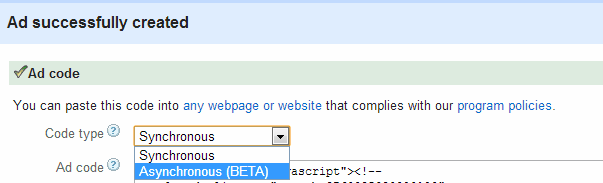
    Open your AdSense Acc. > My Ads, now press Get Code option on your previously created ads and from dropdown menu choose Code Type – Asynchronous (BETA) like below.


    Now you will get your ads code like below:
    <script async src="http://pagead2.googlesyndication.com/pagead/js/adsbygoogle.js"></script>
    <!-- HU 336 x 280 -->
    <ins class="adsbygoogle"
    style="display:inline-block;width:336px;height:280px"
    data-ad-client="ca-pub-1234567890013123"
    data-ad-slot="1233423443"></ins>
    <script>
    (adsbygoogle = window.adsbygoogle || []).push({});
    </script>
    Just remove the red line from it as you have already placed it right above the </head> tag, now just change previous AdSense code with new one.
    That’s it now your new AdSense codes are placed and you can enjoy faster page loading with undisputed Ads loading.

    Wednesday, July 24, 2013

    How To Protect Windows 7 From Viruses

    Is there your PC suffered from viruses and you don't know what to do next, then don't worry here I will tell you how to protect windows 7 from viruses. Protecting your system from virus is not a difficult task but for this you have to be cautious of some things. In today's date most of people are used windows 7 PC. so I decided to write article on windows 7 to protect from latest viruses.


    Here we are providing you some hidden tricks to protect windows 7 from viruses. These hidden tricks are below,  

    Keep your Windows 7 Up to date
    To shake off your system from virus, updating is necessary. Microsoft presents free tools and special security updates that can detect viruses and prevent windows 7 from them. Be ensure that these features works only when Windows automatic updating turn on.

    Install an Antivirus in your system
    To get rid of from virus, choose a trusted antivirus program for your windows 7 and update it time to time. Some antivirus programs are based on annual subscriptions but mostly anti virus software’s are free like Microsoft Security Essentials. You can easily download Microsoft Security Essentials from your browser.

    User Account Control should be turned on
    Be ensure that UAC (User Account Control) should be turned on. UAC help you to prevent unauthorized changes in your system. These changes can affect the security of windows 7.

    To turn on UAC
    It is very simple to turn on UAC. Go to the start button and then click on to control panel. Now open User account control settings. Now with these settings you can turn on or off your UAC.

    Prevent from those emails and attachments file to whom you don’t recognize
    Viruses can also be spread by emails and attachments. It is best to prevent from unknown attachments. Don't open the emails if you don’t know them. You can also block these attachments with the help of Microsoft Outlook and windows mail.

    Proper use of Firewall
    Firewall helps your Windows 7 to block viruses and hackers which attempts to harm your program when you download anything from your browser. So use of Firewall is must if you want to protect your windows from viruses.

    If you are still getting various viruses problem to your PC such as Hanging, Restarting, and getting trouble with shortcut virus, then I would like to recommend Avast! Antivirus which is quite good and keep safe your PC from latest threads or viruses.

    Tuesday, July 23, 2013

    How to Backup SMS from Android to Memory Card

    Do you know How to Backup SMS from Android to Memory Card? SMS are quite important to us, and we don't want to loose them. But sometime sms are deleted by us due to some reason. In this situation it is good solution to get backed up of it. Now at this time there are lots of mobiles comes and goes and we keep on changing handsets for our convince.  Most of us are taked backup of applications and phonebook of our mobile phone, but sometimes we miss to take backup of SMS messages which are sms from our friends. Sometimes I have my banking messages which are having balance records, my credit card SMS which are giving me transaction log, and hence my messages are giving me required and expected mobility. Today, I will focus on Android users, who are using Android mobile phones or tablet with sim and who are receiving SMS messages on their Android devices.


    Let’s think, if you want to change your Android mobile phone and wants complete backup of all your SMS messages into another mobile, or you may need to have a complete backup of all your messages from your Android device to computer as you are formatting your Android mobile phone.

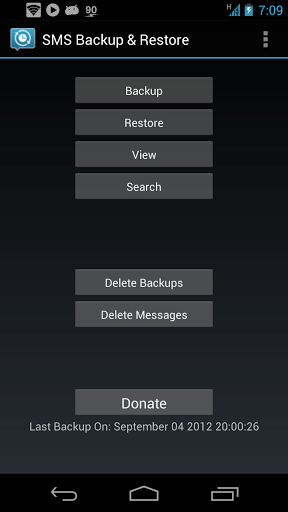
    You can download Android app from google play store at free of cost, using this app you can take backup of your sms messages to computer/pc and restore from computer to android mobile phones or devices.


    Android application to backup and restore sms messages from Android mobile devices is multilingual supports and having support for languages like Finnish, Russian, Spanish, French, German, Dutch, Portuguese, Italian, Polish, Swedish, Estonian, Simplified Chinese, Slovenian, Welsh, Czech, Macedonian, Turkish, Hungarian, Hebrew, Traditional Chinese, Korean, Norwegian, Danish, Romanian and Greek.

    It’s quite easy to operate this application by any normal user, simply follow what has written as shown in print screen, and you can easily take backup of your SMS messages from Android mobile phone to computer or SD card and restore same back to android mobile phone.
    Common Features for Backup & Restore SMS messages of Android Mobile phones Application are

    - Application use XML format to backup text messages.
    - You can schedule timings for auto backup text messages.
    - As it’s XML format, it’s version independent. Backup of text messages from any version of android device, can be restored on other android phone with different version of application.
    - Multiple option selection
    - View/Restore all Messages or only selected conversations.
    - You also can Delete all SMS Messages on android Phone.
    - You can Email a backup file straight from the apps
    - Backup format of XML can then be converted to other formats, and user can read on computers.

    * Please note that this app does not support MMS (Picture/Audio/Video) messages.

    There could be advertisements while using the application, if you want ads free application then you can buy some from market.


    If you are having latest Android smartphone to be backed up for text messages, backup will be stored in internal storage memory, as new mobiles are coming without external card slots.